
What a9a does
a9a is a tool for adjusting the volume, fades, and loops of audio material — sound effects, voice, BGM — before exporting it.
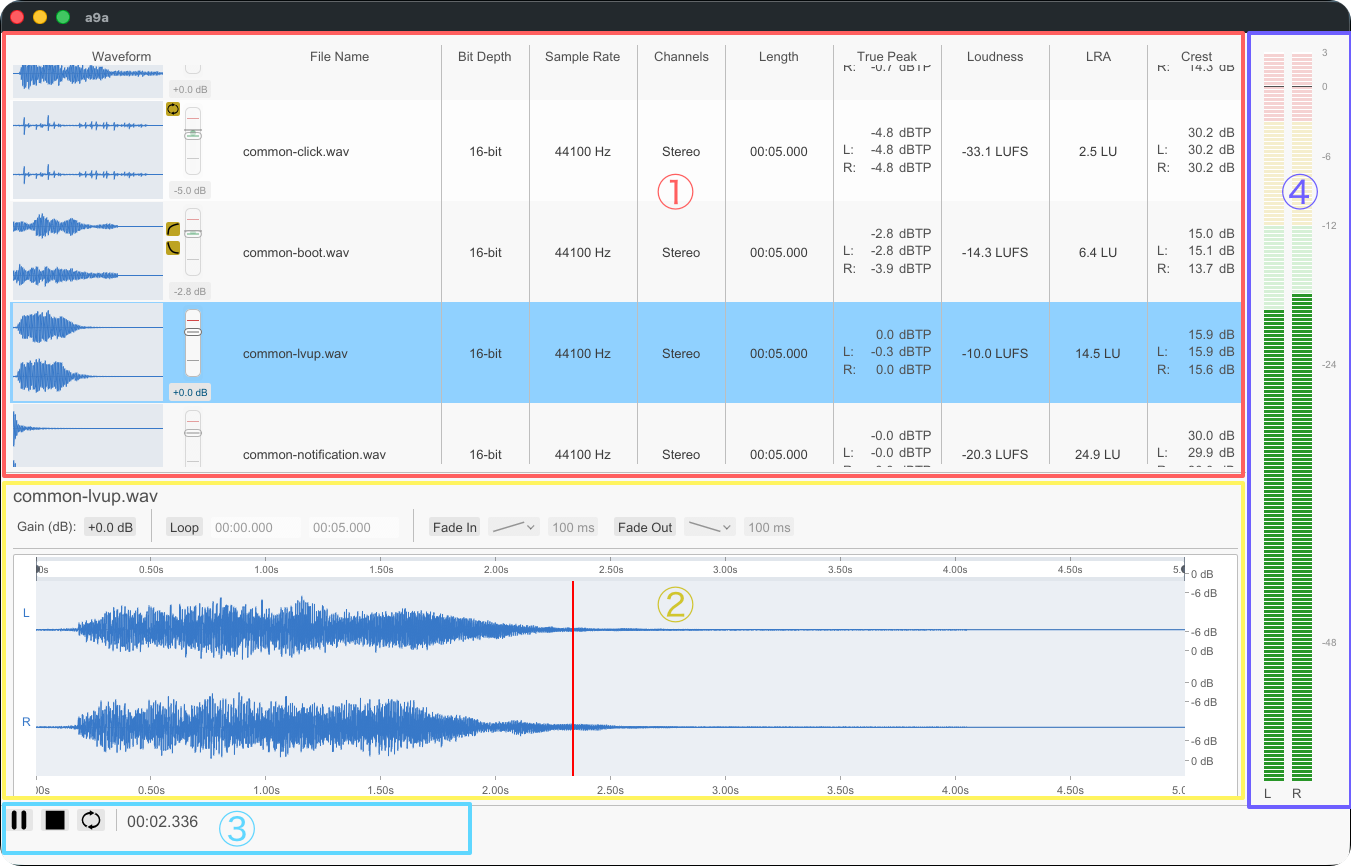
Loaded files are listed side by side, so you can compare waveform, loudness (LUFS), true peak, LRA, crest factor, sample rate, bit depth, channel count, and length across the whole set. When you spot the outliers, you can apply adjustments to just the selected files or to every loaded file at once.
All editing in a9a is non-destructive. Applying gain, loudness, fades, loops, or trims leaves the original file untouched. Your adjustments are written to a file when you bounce (export).
Supported formats
| Format | Read | Write |
|---|---|---|
| WAV | Yes | Yes |
| FLAC | Yes | Yes |
AIFF / AIFF-C (.aif / .aiff / .aifc) | Yes | Yes |
Ogg Vorbis (.ogg / .oga) | Yes | Yes |
| MP3 | Yes | Yes (requires LAME) |
AAC (.m4a / .aac, AAC-LC / HE-AAC v1 / HE-AAC v2) | Yes | Yes |
Your first five minutes (GUI)
The shortest path from loading files to exporting them at a consistent loudness.
- Load files. Choose
Open...in theFilesmenu, or drag and drop from Finder / Explorer onto the list area. You can load multiple files at once. - Compare them. Click the
LoudnessorTrue Peakcolumn header to sort, and the files that stand out — too loud or too quiet — surface immediately. - Fix them in one pass. Open
Loudness > All...from theEditmenu, enter your target inTarget Integrated Loudness (LUFS), and pressApply. TheLoudnesscolumn updates. - Export. Open
Bounce > All...from theFilesmenu, setOutput Directory, and run it.
The same thing in the CLI
Start by inspecting the current state with probe.
a9a_cli probe *.wavThen apply the same loudness adjustment to every file with render. Adding --same-format keeps each output in the format of its input.
a9a_cli render *.wav \
  --out-dir out \
  --same-format \
  --op loudness target=-16LUFS max-true-peak=-1dBTP
This page was written with generative AI.